Preview

Today’s job on Monday’s screens, next to the old way.

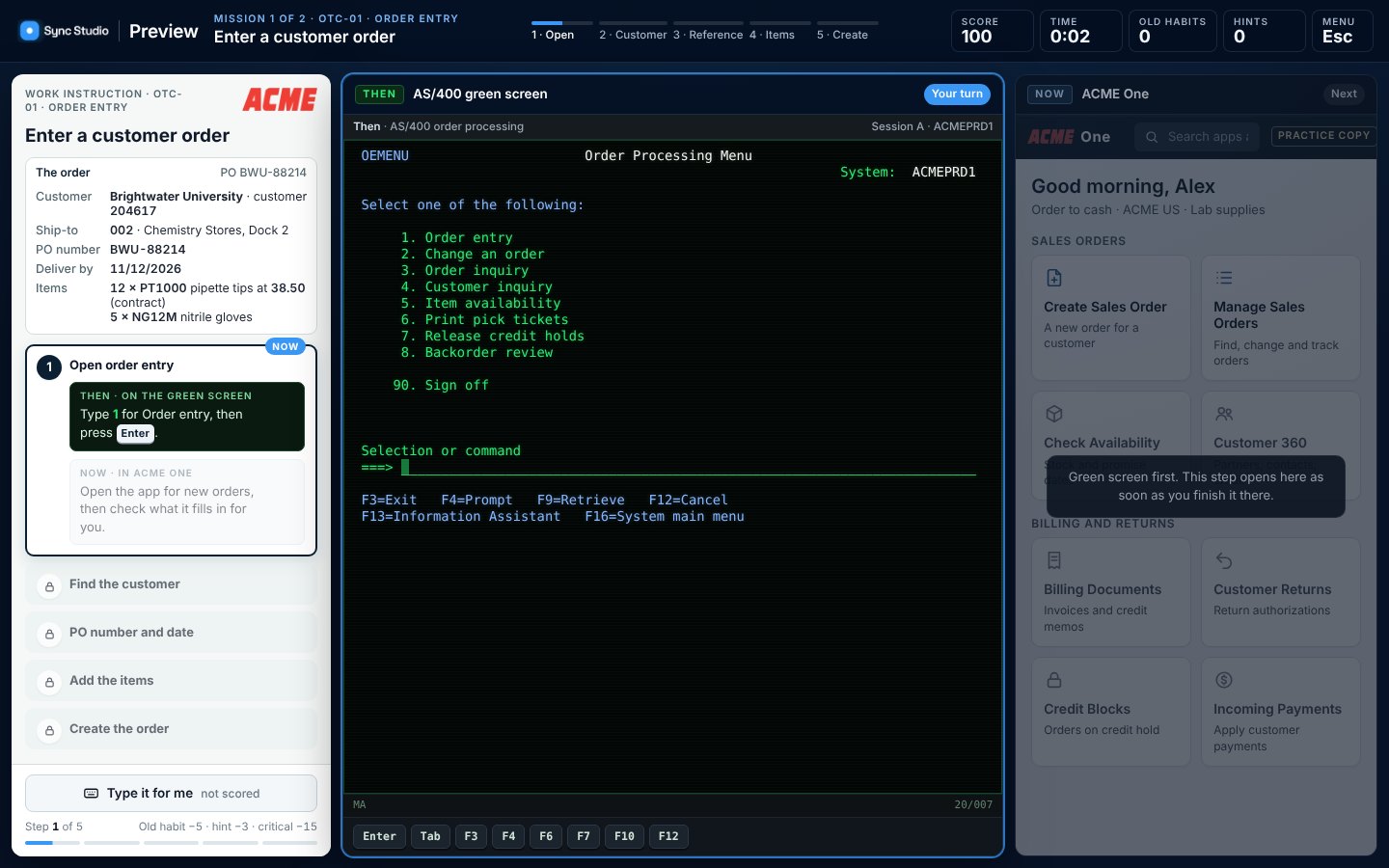
People don't just learn new screens; they unlearn old habits. Preview puts the old way next to the new one, so employees do the job they already know both ways and see every change called out.

ACME One · Preview console

ACME One Preview: moving the order desk

ACME One Preview: the same order-entry task on the old system (here, a green screen) and in ACME One, side by side.

Concept demonstration · Fictional organization

2 tasks · Old and new system

Try it · Trainee: employee number 100245 · Leaders: admin code ADMIN-907-315

Open the demo

Best on a laptop or desktop. The leadership dashboard also works on a phone.

Whatever the old way is today.

The demo uses a green screen. Yours can start from any of these, always next to the same new screens.

Green screen. Menu numbers, F-keys and fixed-width fields, recreated the way people know them.

How it works

One real task, start to finish.

  1. Do it the old way

    The task on a recreation of today's screen. Not scored.

  2. Do it the new way

    The same task in the new system, scored, with a coach.

  3. See what changed

    Every difference is tagged: moved, new number, new format, now automatic. Each run ends with a personal change card and a quick readiness check-in.

Preview add-ons

One change library, two more views.

Preview is built on a library of every task, screen, number and rule that changes. Translate puts that library in everyone's pocket. Change Map shows leaders where it lands, by job and site.

Add-on · Translate · Look-up view

Ask it the way you used to.

Go-live week is full of questions in the old language: a menu number, an F-key, a customer number, a paper form. Translate answers them on the spot with where it lives now, what to do and why it changed, then links to the Preview or the practice for it. Station cards with a scan code put the answers at each desk and dock. Leaders see what people ask, what has no answer yet, and the hours it gives back.

  • Old menus, keys, numbers and forms translated on the spot
  • Station cards for each desk, door and bench
  • Unanswered questions become the next answers to write

ACME One · Preview · Translate

Translate: ask it the old way

Concept demonstration · Fictional organization

Go-live and acquisition modes

Try it · Type F7, menu 7 or 011527 · Switch to Kestrel to ACME and type KLS-2290

Open the demo

Works on a phone. Opens in a new tab.

Add-on · Change Map · Admin view

Train for the change, not for everyone.

Change Map is the scoping view behind the readiness heat map. Every process is mapped as-is and to-be for every job and site, so leaders see how much changes, how ready people are, and which practice each square gets. Training is sized to the change instead of one class for everyone, and each job gets its own two-minute briefing from the same map.

  • As-is to to-be, by job, process and site
  • Training hours sized to the change, with the hours given back
  • A briefing for every job: what changes, what stays the same, who to ask

ACME One · Preview · Change Map

Change Map: as-is to to-be for 441 people

Concept demonstration · Fictional organization

12 jobs · 6 sites · Sample data

Try it · Pick a square, switch to Readiness, then open Briefing by job

Open the demo

Works on a phone. Opens in a new tab.

Acquisitions

Their way to yours, before Day One.

After a deal closes, the people who join you bring their own item codes, labels, paperwork and approval rules. Preview treats their company as the old system: they do the task their way and your way side by side, Translate answers their Day One questions in their own words, and Change Map shows which of their jobs change and how ready each site is before cutover.

See the Day One mode in Translate
  • Map their codes, labels and paperwork to yours
  • Practice the rules that change overnight: approval limits, holds, bank-detail call-backs
  • Track their sites on the same readiness heat map as yours

For leaders

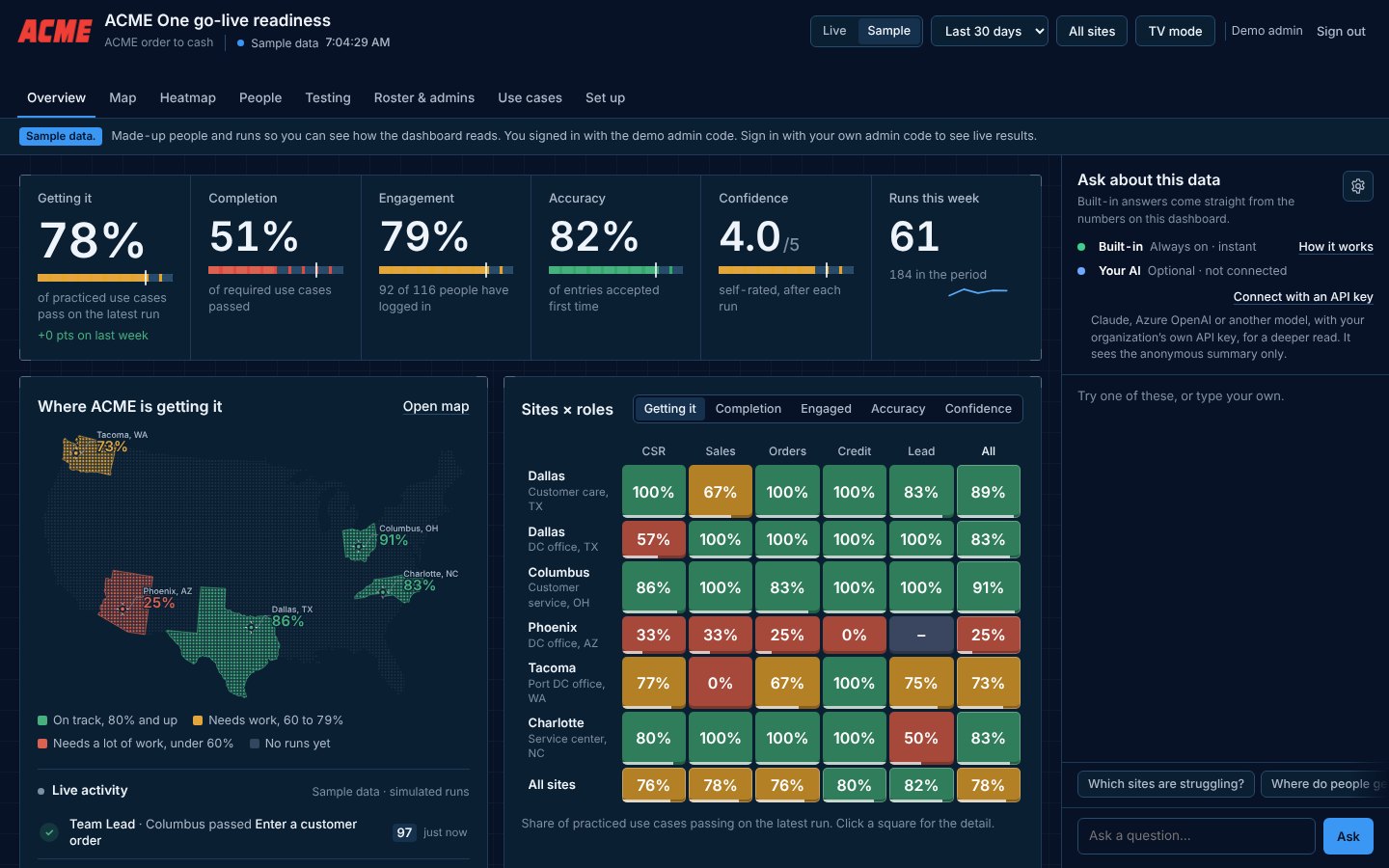
See who's ready, by site and role.

Readiness is not a separate offering: every Practice, Preview and Simulate build comes with the same heat map.

Example: which order desks still reach for the old screen, and which changes trip them up.

  • Heat map by site and role

    Green 80%+, yellow 60–79%, red under 60%.

  • Five readiness measures

    Getting it, Completion, Engagement, Accuracy, Confidence.

  • Where people get stuck

    And what they say would help.

  • Check-ins after every run

    How ready people feel, in their own words.

  • TV mode and exports

    For site huddles, and CSV for your own reporting.

  • Ask the data

    Built-in answers to plain questions, with the option to connect your organization's own AI service.

Groups under five people are merged, and AI only ever sees an anonymous summary.

Readiness consoleSample data
Readiness dashboard with KPIs, a US map and a sites by roles heat map, using made-up sample data.
Sample data · leadership dashboard from the ACME One Preview demo

Change Map is the scoping view behind this dashboard.

Good fit when

Where it earns its place.

  • Replacing an older system: a green screen, an older ERP, spreadsheets or paper.
  • Two companies moving onto one system after an acquisition.
  • A process redesign where steps move between teams.

Before we build

Key considerations

What we agree with you before we build, so the trainer fits your IT, your people and your rollout.

Hosting and sign-in

We host your trainer on a private link, and employees sign in with their employee number, so there are no new passwords. If your IT team prefers, we deliver a self-contained package for your intranet or learning system instead, and results stay in your systems. Single sign-on can be scoped in the SOW.

Data, privacy and AI

Built on synthetic data in a recreated version of your screens, never connected to your live system. Leaders see results by site and role, groups under five people are merged, and names are visible only to the admins you choose. The dashboard answers plain questions with built-in logic; if you connect your own AI service, it only ever receives an anonymous summary.

Your team's involvement

  • Process owner or subject-matter expert: walks us through the real task, shares SOPs and screens, answers questions during design and build.
  • IT contact: hosting, sign-in and a security review.
  • Site leads: the roster, the test group, and using the dashboard in site huddles.
  • Reviewers: two structured review rounds and final sign-off.

Rollout

You choose: all sites at once, a pilot site first, or in waves. We agree on it in the SOW and set up the roster, access codes, site posters and dashboard to match.

Devices and languages

Runs in a current browser on a laptop or desktop. The leadership dashboard also works on tablets and phones. Language versions and accessibility needs are scoped up front.

What we need from you

Your current screens and steps, plus the new system's design or test environment. We recreate both.

All of this is written into your Statement of Work.

Where it fits in your rollout

  1. Plan

    Preview
    Change MapWho changes how much
    Readiness
    Readiness —
  2. Build

    Preview
    TranslateOld codes to new, mapped
    Readiness
    Readiness —
  3. Go-live

    Preview
    PreviewSame job, new screens
    Readiness
    ReadinessReady, site by site
  4. After go-live

    Preview
    PreviewAcquisitions join the same way
    Readiness
    ReadinessEvery revision, proven

Pick what you are rolling out. These are typical; we map yours with you.

See it in the studio tour →